
Creating blueprints
A field-by-field guide to the blueprint composer and how to write instructions that work.
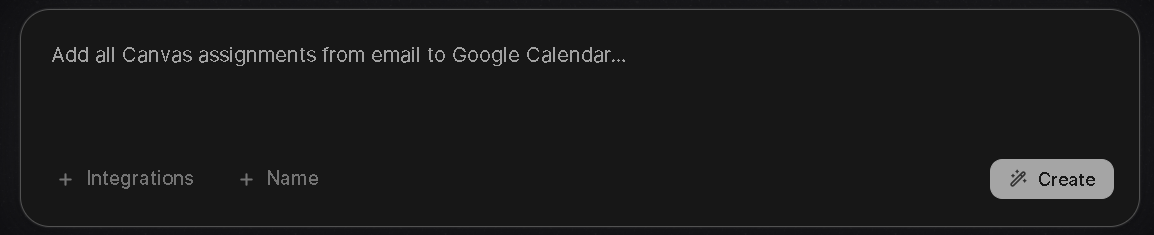
Open Blueprints in the app and tap New blueprint. You can start from a template or a blank composer.
The composer
| Field | Notes |
|---|---|
| Name | Up to 60 characters. Texting this name runs the blueprint. |
| Instruction | 12 to 2000 characters of plain language. This is the whole brief Postface works from. |
| Integrations | Pick which connected accounts the blueprint may use. Only accounts you have already connected are offered; custom MCP integrations appear here once they are working. |
| Schedule | Daily, weekdays, weekly, hourly (Pro and above) or on demand. Scheduled runs use your local time. |
| Category | Used to organise the library: Work, Engineering, Personal, Health, Content or General. |
Writing a good instruction
- Say what to look at and how far back. "Unread email from the last 12 hours" is better than "my email".
- Say what to report. Name the two or three things you want in the text and the order you want them in.
- Say what to skip. "Ignore newsletters and calendar invites" saves the character budget for what matters.
- Keep texts short. Each plan has a character ceiling per run (see Blueprints). Postface trims to fit, so put the most important item first.
Running and testing
Tap Run on any blueprint to run it immediately, or text its name. Each run is recorded with its outcome: Done (a text was sent), Nothing (Postface found nothing worth reporting and stayed quiet) or Failed with the reason. Pause a blueprint at any time to keep it without running it.
Taking actions
Blueprints that use GitHub, Slack, Notion or Canva can act as well as read: open an issue, post a message, add a note or create a design. Say so explicitly in the instruction. Mail and calendar integrations are read-only.